The Office Wi-Fi Rules Most Teams Never Write Down — and Later Regret
Most small-office Wi-Fi problems come from decisions nobody remembers making. This article walks through the network rules I install at every client: separating guests from trusted devices, hardening the router's admin login, choosing the right WPA encryption, and containing IoT gear on its own segment. Written from the operational viewpoint of a former IT and compliance manager who has cleaned up the aftermath too many times, it turns an invisible layer into a one-page policy anyone can follow.
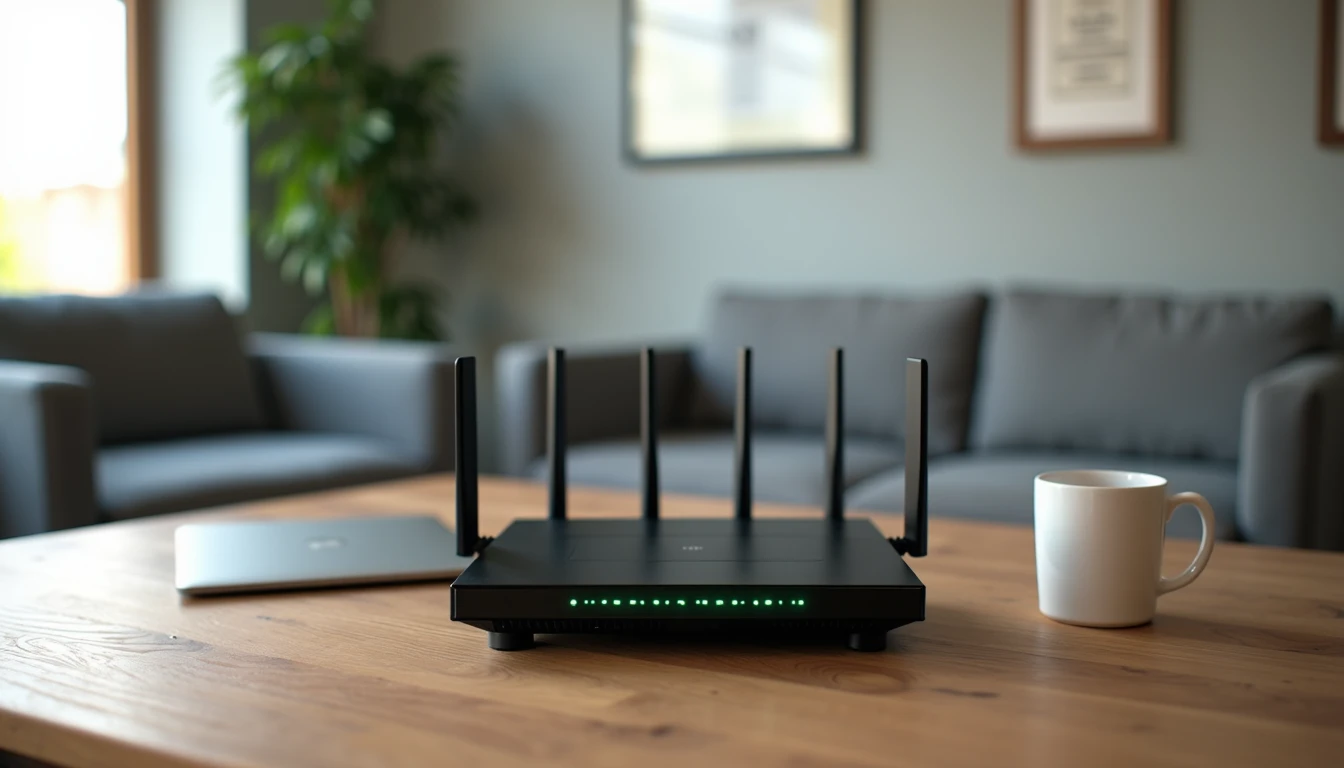
I have walked into more small offices around Madison than I can count where the Wi-Fi just "sort of happened." Somebody bought a router at an electronics store years ago, plugged it in, named the network after the company, and never looked at it again. That setup quietly runs the payroll laptop, the guest phones, the smart thermostat, and sometimes the accountant's personal tablet on the same invisible pipe. When I start asking questions, the room gets uncomfortable fast. Office network security basics are not glamorous work, but they are the layer I check first, because almost every bad outcome I have cleaned up traced back to a Wi-Fi decision nobody remembered making. Security gets easier when the rules make sense, and Wi-Fi is where the rules tend to be the most invisible.
The Single Network Problem: Why Guests and Payroll Should Never Share a Pipe
The first rule I write into every network policy is the one teams fight me on least once they understand it: separate the people you trust from the people you do not. A guest on your Wi-Fi — a vendor in the lobby, a delivery driver, a consultant you just met — should never land on the same segment as the laptop that runs payroll. In my experience, small offices collapse this distinction because the router came with one name and nobody wanted a second. That is how a contractor's malware-infested phone ends up two hops from your file server.
What a Sensible Separation Looks Like
I keep it practical. You do not need enterprise-grade hardware to do this.
A main network for company-owned devices only — laptops, desktops, printers that handle sensitive documents.
A guest network with a different name and password, on a separate subnet or at least isolated by the router's guest feature, for everyone else.
A third hidden or separately named network for IoT gear — thermostats, smart TVs, security cameras — because those devices get firmware updates roughly never.
Most business-grade routers, even the ones in the 300 range I recommend to small clients, support a guest network out of the box, and turning it on takes ten minutes. The reason this matters is simple: if a guest device is compromised, isolation slows the problem down long enough for you to notice. My Avoidable Problems notebook has a permanent spot for "guest phone on the company network." Office network security basics start with admitting that not every device on your Wi-Fi deserves the same trust.

The Admin Password That Has Been admin/admin Since 2019
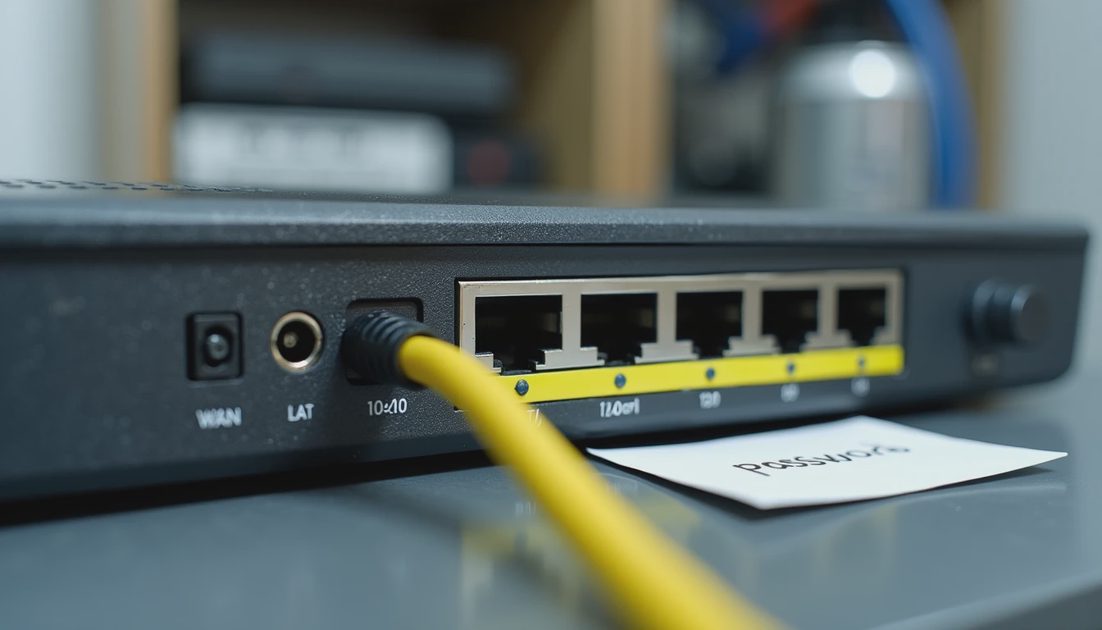
The second thing I check, after network separation, is the router's admin login. More often than not, it is still set to the factory default. I wish I were exaggerating. The admin interface is where the entire network's configuration lives — DNS, firewall rules, the guest network toggle, firmware. If somebody can reach that login page and the password is still admin or password, they own your network. Office network security basics collapse the moment that credential is left default, because every rule you set afterward can be undone in seconds.
Three Router-Hardening Steps I Refuse to Skip
I treat router hardening as a checklist, not a discussion. These are the three steps I insist on before I sign off on a small-office network.
Change the admin password to a long passphrase — at least 16 characters, random, stored in a password manager — and write down where the router lives physically and who has that credential.
Disable remote admin access from the internet, sometimes called WAN-side management. There is rarely a good reason to manage the router from outside the building, and every reason to close that door.
Note the router's firmware version and check it against the manufacturer's site on a calendar reminder every three months. Stale firmware is where known vulnerabilities live, and small offices almost never update on their own.
That last point surprises people. Firmware updates for routers do not happen automatically in many cases, and a router running three-year-old firmware is a known-quantity target. I tell clients the router is the front door of the network, and you do not leave the front door on its original factory lock for half a decade. This is office network security basics at the most literal level — the device controlling all the traffic has to be maintained, not just installed.
WPA2, WPA3, and the Password That Is Too Short
The wireless encryption setting is where I see the most confusion, partly because the terminology is genuinely bad. Here is how I explain it without the jargon. WPA2 is still acceptable for most small offices today; WPA3 is newer and stronger, and I recommend it when the router and devices both support it. The setting to avoid entirely is WEP or anything labeled "TKIP only," because those are breakable in minutes. Office network security basics include knowing which encryption is actually protecting the air in your building.
Setting | What It Means in Practice | My Recommendation |
|---|---|---|
WPA3-Personal | Newest standard, stronger handshake, good for new hardware | Use when router and devices both support it |
WPA2/WPA3 mixed | Router accepts both, falls back when needed | Reasonable transition setting |
WPA2-Personal (AES) | Widely supported, still solid for small offices | Acceptable baseline if WPA3 is not available |
WEP / TKIP only | Legacy, breakable, should not exist in 2026 | Remove immediately |
The table above is the short version of what I walk clients through, and it usually settles the "which one do I pick" question in five minutes. But encryption is only half the equation. The Wi-Fi password itself matters just as much. A short, dictionary-word password defeats strong encryption, because an attacker does not break the math — they guess the passphrase. I ask for a passphrase of 16 characters or more, something memorable but not a single word. The guest network passphrase should differ from the main one and be rotated every so often, especially if it has been shared widely. Cybersecurity habits for employees include treating the Wi-Fi password like a real credential, not something on a sticky note at the reception desk — which, yes, I have found more than once.
IoT Devices on the Wrong Side of the Fence
The third recurring problem in my Avoidable Problems notebook is the quiet accumulation of smart devices on the main network. A thermostat installed by an HVAC vendor, a conference-room smart TV, a doorbell camera — each is a small Linux computer the manufacturer may patch on an unpredictable schedule, if at all. When those devices share a segment with the accounting laptop, every one becomes a potential foothold. I do not consider a network reviewed until I can answer where the IoT gear lives.
Keeping the Smart Stuff Contained
The goal is containment, not fear. I am not against smart devices; I just want them on their own network name with their own passphrase, isolated from anything touching financial or client data. If the router supports VLANs, that is the clean way to do it; if not, the router's built-in guest or IoT feature gets you most of the way there. A compromised thermostat should not be able to see the file share. Office network security basics are, at heart, about limiting how far a single problem can travel.
When I finish a network review, I leave behind a one-page sheet: the network names, who has the admin password, the firmware check date, and where each class of device belongs. It is not a polished document — just a page of rules that make sense, so nobody has to relearn this when a router gets replaced. Because the pattern I see, over and over, is that the network was set up once, worked fine, and was forgotten — until the day it was the reason somebody called me in a panic.
What to Look for Before You Buy Antivirus for a Law Firm, Agency, or Accounting Office
NextHow to Build a Basic Device and Access Checklist Before Compliance Becomes a Crisis
Digital Footprint Audit: A Practical Guide for Small Businesses
A digital footprint audit helps small businesses find exposed accounts, ...
Phishing Scam Text Message: How Office Teams Can Respond Safely
A phishing scam text message can look harmless. Learn how office teams s...
The Best Security Habits for Hybrid Teams Who Work at Home, in Coffee Shops, and in the Office
A practical guide to realistic security habits for hybrid teams across t...
Leave a comment
No comments yet.