What “we can't verify that this email came from the sender” Really Means
We can't verify that this email came from the sender? Learn what the warning means, how to inspect the message, and when your team should report or delete it.
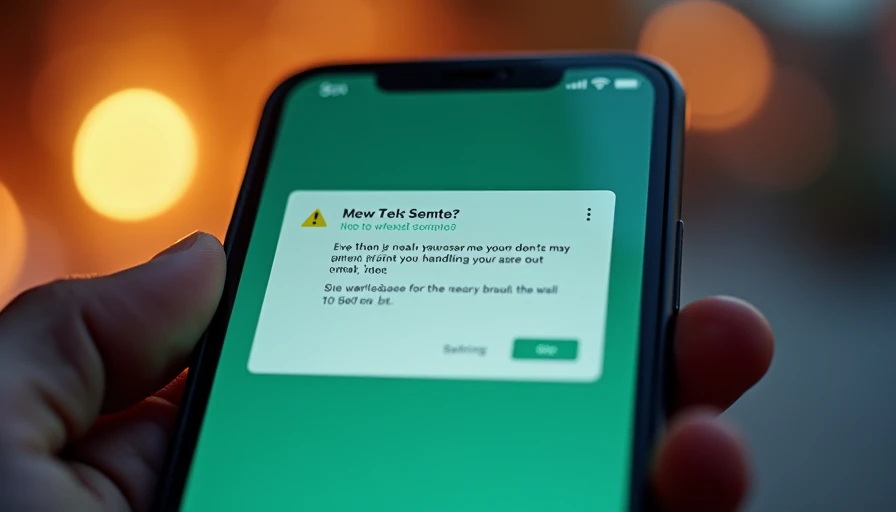
Seeing the message “we can't verify that this email came from the sender” is a signal to slow down, not proof that the email is malicious. Email systems display this warning when they cannot confidently connect the message to the person, company, or domain shown in the From field. For an office team, that uncertainty matters because phishing attacks often depend on a familiar name and a rushed decision.
An email can look ordinary while coming from a compromised account, a lookalike domain, or a third-party service that was not configured correctly. The warning is best treated as a checkpoint. Do not click, pay, download, or reply until you understand why the message was flagged.
Why email systems show this warning
Email relies on several technical checks to establish trust. Sender Policy Framework, or SPF, identifies the servers allowed to send mail for a domain. Domain-based Message Authentication, Reporting, and Conformance, known as DMARC, compares the visible sender with authentication results and gives receiving systems instructions for handling failures. DomainKeys Identified Mail, or DKIM, adds a cryptographic signature that helps confirm a message was authorized and not changed in transit.
When one of these checks fails, is missing, or does not align with the visible sender, an email provider may show “we can't verify that this email came from the sender.” A legitimate newsletter can trigger the notice after a marketing platform changes its sending infrastructure. A small business invoice can trigger it because the domain owner never finished setting up authentication. The same warning can also appear on a well-designed phishing email.
The important distinction is that authentication is evidence, not a complete safety judgment. A compromised account can pass normal checks because the attacker is using a real mailbox. Treat the warning as one input in a broader review.
How to inspect a suspicious message safely
Start with the sender address, not the display name. “Microsoft Billing” could be attached to an unrelated Gmail address, a misspelled domain, or a lookalike such as micros0ft.example. On a phone, tap the name to reveal the complete address. On a desktop, hover over links without opening them and compare the destination with the organization’s known website.
Next, consider the request. Password resets, payroll changes, wire transfers, gift card purchases, tax documents, and urgent contract signatures deserve extra scrutiny. A message that says your account closes in one hour is using pressure to replace verification. That is a business process problem as much as an email problem.
If you are unsure, verify through a separate channel. Call a known phone number from your vendor record, open the company website by typing its address yourself, or start a new message to a trusted contact. Do not use the phone number, link, or reply address supplied by the questionable email. This simple separation prevents an attacker from controlling both sides of the conversation.
Common legitimate reasons for the warning
Not every alert means someone is attacking your company. A vendor may send invoices through QuickBooks, Mailchimp, HubSpot, DocuSign, or another service while the visible address uses the vendor’s own domain. If the service’s SPF or DKIM settings are incomplete, the receiving mailbox may not confirm the relationship.
Forwarding can create another problem. An employee may forward a message from one system into Microsoft 365 or Gmail, and the forwarded copy may fail authentication even though the original was genuine. Shared mailboxes, automated alerts, website forms, and newly registered domains can produce similar results.
These explanations should reduce panic, not eliminate caution. If the message requests money, credentials, sensitive files, or a change to a known account, verify it independently. Ask the sender to confirm through a phone call or a separate message. Legitimate partners usually understand a short security check, especially when the request changes payment or access details.
When the warning points to phishing
The risk rises when several clues appear together. The sender address is slightly misspelled, the tone is unusual, the email contains an unexpected attachment, and the requested action has a deadline. Another warning sign is a link that appears to lead to a familiar service but opens a different domain. Attackers frequently copy branding from Microsoft 365, Google Workspace, banks, payroll providers, and shipping companies because familiarity lowers resistance.
A message saying “we can't verify that this email came from the sender” should not be ignored when it accompanies a password request or payment instruction. Do not enter credentials into a page reached from the email. Instead, open the service using a saved bookmark or manually typed address. If the account shows no alert, contact the provider through its official support channel.
For attachments, avoid enabling macros or running executable files. A PDF is not automatically safe, either; it can contain links or social-engineering instructions. If the file is unexpected, confirm the sender and purpose before opening it.

What an office should do next
Give employees a simple reporting route. In Microsoft Outlook, Gmail, and many managed email platforms, the built-in phishing report button can send useful headers to administrators. If your company has no reporting button, create a shared security mailbox or tell employees exactly which manager or IT contact to use.
Preserve the original message when possible. Forwarding can remove technical details, so use the platform’s report function or attach the original message file if your administrator requests it. Record who received the email, whether anyone clicked, and whether credentials or financial information were entered. These details help determine the response.
If someone clicked a suspicious link, have them stop entering information and contact the responsible administrator immediately. If credentials were submitted, reset the password from a trusted device, revoke active sessions, and review multifactor authentication settings. If payment instructions were followed, contact the bank promptly using a verified number. Speed matters, but blame slows reporting; employees need to know that early disclosure is safer than hiding a mistake.
How to reduce repeat warnings and risk
For a small business, prevention starts with properly configured email authentication for your own domain. Your email administrator or provider should review SPF, DKIM, and DMARC records, remove outdated sending services, and monitor legitimate platforms that send on your behalf. Start with a reporting policy that tells staff what to do with uncertain messages and who owns follow-up.
Add multifactor authentication to email, payroll, banking, and file-sharing accounts. Use a password manager so employees are less likely to reuse passwords or type them into lookalike websites. Keep browsers, operating systems, and endpoint protection updated, because a phishing click is more dangerous on an unpatched device.
Run short, realistic training using scenarios your team actually sees: a changed vendor bank account, an unexpected shared document, or a fake Microsoft 365 expiration notice. Security gets easier when the rules make sense. When employees understand why “we can't verify that this email came from the sender” appears and what action to take, they are more likely to pause, report, and verify instead of guessing.
A safer office is usually a more boring office: known payment procedures, separate verification channels, managed devices, and clear escalation paths. Build those habits before a suspicious email arrives, and one warning will be a manageable decision rather than an expensive incident.
How Do Insider Threat Programs Defend Businesses From Internal Risk?
NextData Execution Prevention for Small Business: A Practical Windows Guide
Small Business Cloud Security: A Practical Office Guide
Small business cloud security explained in plain English: protect accoun...
Vulnerability Management Metrics That Make Office Security Easier
Use vulnerability management metrics to find overdue fixes, measure risk...
How to Secure a Business Network Without Making Work Miserable
Learn how to secure a business network with practical steps for password...
How Do Insider Threat Programs Defend Businesses From Internal Risk?
Learn how do insider threat programs defend company data with practical ...
How Can You Prevent Virus and Malicious Code at Work?
Learn how can you prevent virus and malicious code with practical office...
Leave a comment
No comments yet.